How to Turn Your Doodles into AI Images with ChatGPT's New Sketch Tool
You’ve got a picture in your head, but you can’t draw it, and you definitely can’t describe it in words that do it justice. “A cabin on a hill, but the roof is steeper, and the door is on the left, and there’s a path curving down to a lake” — by the time you finish typing that sentence, you’ve probably already lost the version you actually imagined.
This week, OpenAI rolled out ChatGPT Images 2.5, its newest image-generation update, and buried inside it is a feature that solves exactly this problem. It’s called Sketch, and it lets you draw a rough shape with your mouse or finger and have the AI turn that scribble into a finished, polished image. No art skills required, and it’s free on every ChatGPT plan.
What Is Sketch, Really?
Most people assume AI image tools only understand words: you type a prompt, the AI guesses at everything else — where objects sit, how big they are, which way they face. That guessing is where a lot of frustration comes from. You ask for “a dog sitting next to a bench on the left side of the frame,” and the AI puts the dog in the middle anyway.
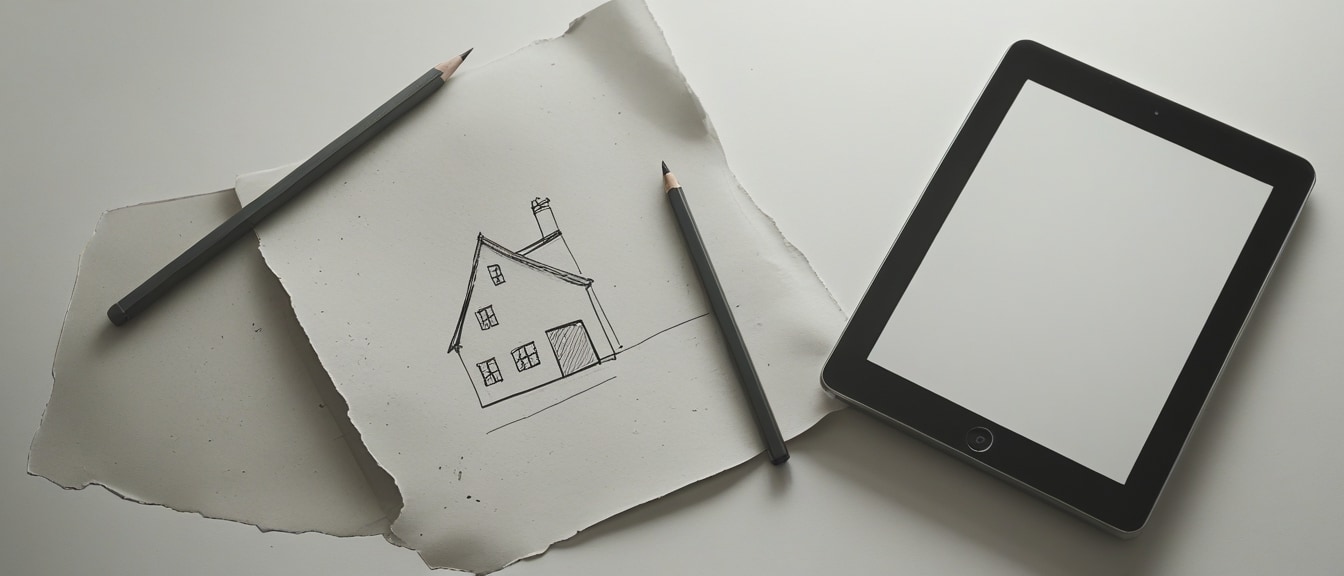
Sketch changes what you hand the AI in the first place. Instead of describing the entire layout in words, you draw it. A few rough lines showing where the cabin goes, where the path curves, where the door sits — that’s the composition, and the AI treats your drawing as a literal map of the scene. You still add a short text description for style and detail (“cozy, snow-covered, warm light in the windows”), but you’re no longer responsible for describing position. The picture in your head and the picture in the output finally start from the same layout.
How Does It Work?
Think of it like handing a set designer a napkin sketch instead of a paragraph of instructions. A napkin sketch with three boxes and an arrow communicates “table here, door there, window behind it” faster and more accurately than a page of text ever could — the set designer doesn’t have to reverse-engineer your spatial intent from adjectives.
That’s essentially what Sketch does. The model reads two inputs at once: your rough drawing, which anchors the composition (where things are, how big they are, how they relate to each other), and your text prompt, which fills in everything the drawing can’t show — color, mood, texture, lighting. It blends the two, using the sketch as scaffolding and the words as the finishing details, then renders a complete image that respects both.
How to Try It Yourself
You don’t need a ChatGPT Plus subscription or any drawing talent to test this out today.
- Open ChatGPT on desktop or mobile and start a new chat, or go straight to chatgpt.com/sketch.
- Type @Sketch in the message box, or tap the sketch icon if you’re on the dedicated page. A blank drawing canvas will open.
- Draw a rough version of what you want — simple shapes and lines are enough. Don’t aim for a good drawing; aim for a clear layout. A circle for a sun, a rectangle for a building, a squiggle for a road.
- Below the canvas, add a short text description covering style, colors, and mood — for example, “watercolor style, sunset lighting, warm oranges and pinks.”
- Tap the confirm button to send your sketch and description together.
- Review the result. If something’s off, you can redraw part of the sketch or tweak your description and generate again.
Free accounts get the same underlying image model as paid accounts — the only difference is how many images you can generate before you’re asked to wait. Community reports suggest free users get a handful of generations every few hours, which is plenty for experimenting.
Tips to Get Better Results
Keep your sketch simple. You’re drawing a layout, not a finished piece of art. Basic shapes and rough proportions communicate more clearly than an attempt at detail the AI has to untangle.
Let the sketch handle position, and let your words handle everything else. Don’t waste text describing where things are — that’s what the drawing is for. Spend your words on style, lighting, materials, and mood instead.
Be specific about style early. “Photorealistic,” “flat vector illustration,” and “oil painting” produce very different results from the same sketch, so decide on a direction before you generate rather than after.
Iterate on the sketch, not just the prompt. If the composition feels wrong, redraw it rather than trying to fix it with more adjectives. The drawing is the fastest lever you have.
Use it for planning, not just final art. Sketch is genuinely useful for mocking up a room layout, a poster design, or a scene before you commit to a direction — treat early attempts as drafts, not final output.
Closing Thought
The gap between “the image in your head” and “the image you can actually produce” has been the whole barrier to entry for visual work, and Sketch quietly closes a big piece of it — you don’t have to be a writer or an artist, just someone who can draw a rough circle where the sun goes. Open chatgpt.com/sketch right now, draw the simplest thing you can think of — a house, a face, a tree — add one line of description, and see what comes back. That one small doodle is enough to feel the difference.